Help Download
Help › Guide

How to use WakaPals.

A quick tour of the app, screen by screen. The pictures show a made-up crew, “Surulere Walkers”.

1

Getting started

  1. Download WakaPals and sign in with your email (we send a six-digit code), Apple or Google.
  2. Tell us your age band (WakaPals is for 16 and over), pick your runner and set a daily step goal.
  3. Allow steps: Apple Health on iPhone, Health Connect on Android.
  4. Start a crew and send the invite code or link, or join a crew with a code like WAKA-7F3K.
02

Create your account

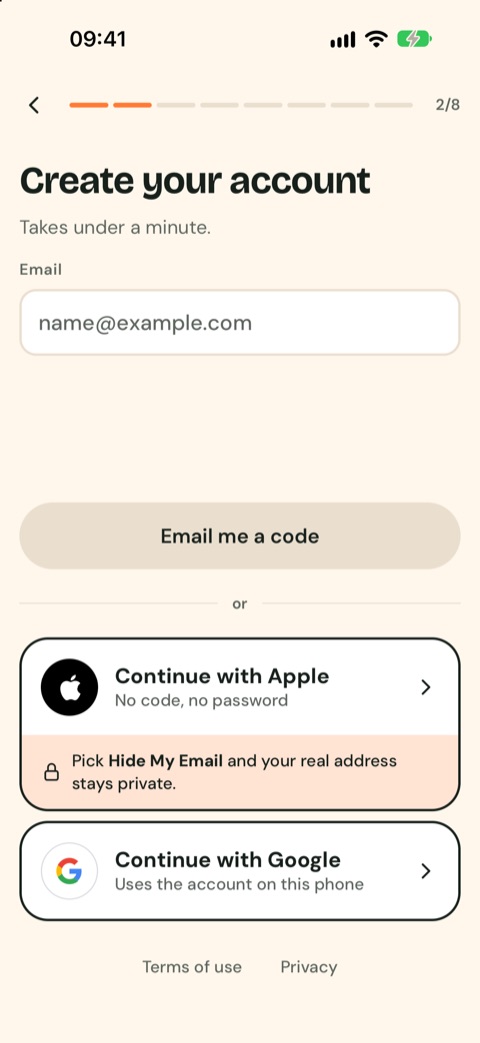
Type your email and tap Email me a code, then type the six-digit code we send you. Or tap Continue with Apple or Continue with Google: no code and no password. With Apple you can pick Hide My Email to keep your real address private.

The Create your account screen: email, Continue with Apple, Continue with Google
03

Make your runner

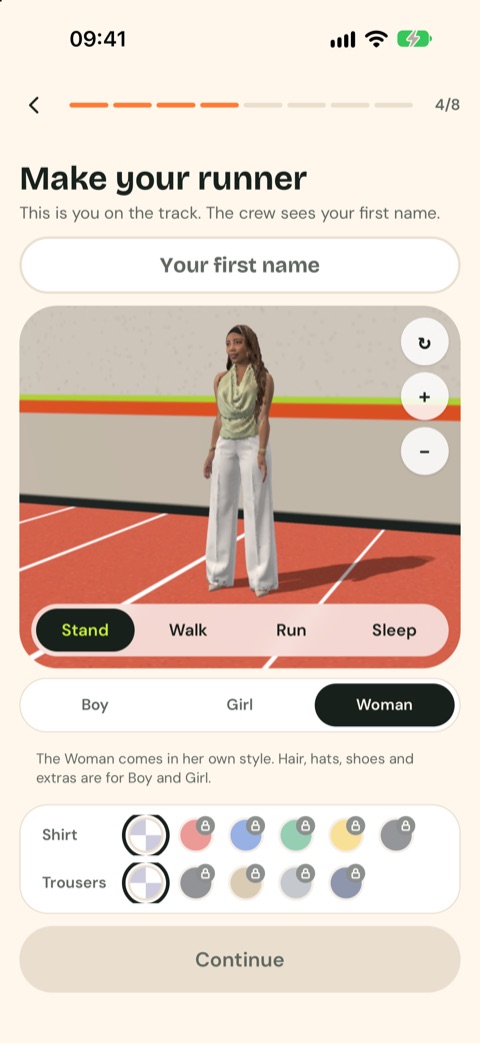
Type your first name (that’s what your crew sees), choose Boy, Girl or Woman and pick colours. Tap Stand, Walk, Run or Sleep to see them move. Then set your daily goal, allow steps and start or join a crew.

Make your runner: first name, the runner on the track, Boy, Girl or Woman and colours
04

The Race tab

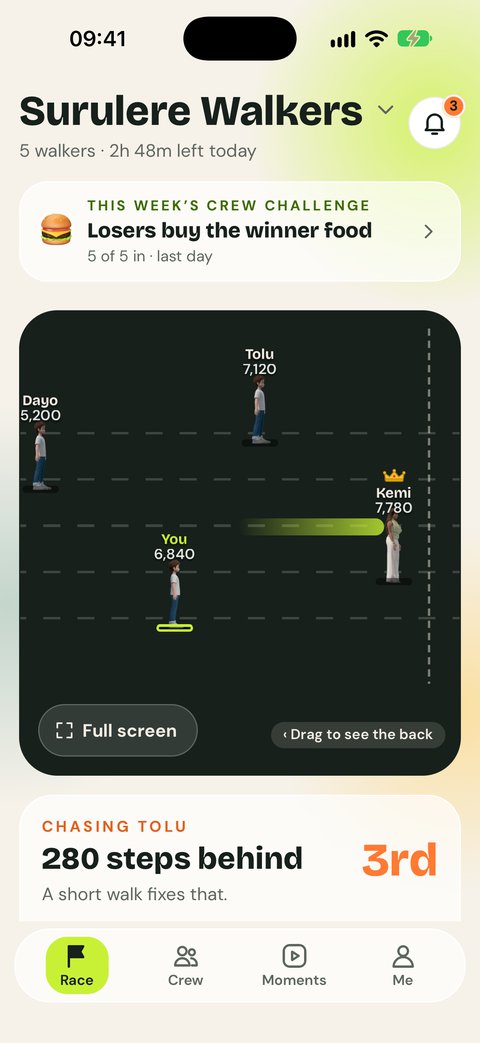
Your crew’s name is at the top and its runners move along the track as everyone walks. The leader wears the crown.

  • Tap the crew name to switch crews, or create or join one.
  • The card under the name shows your place: You lead, or who you’re chasing and how far behind you are, with a button to nudge them.
  • Tap Full screen under the runners for a bigger track.
  • Scroll down for the standings: everyone’s place and steps today, with a ring showing how close each person is to their goal.
  • A crew challenge running? Its card shows here too.
The Race tab: runners on a track with Kemi in the lead wearing the crown
05

Alerts

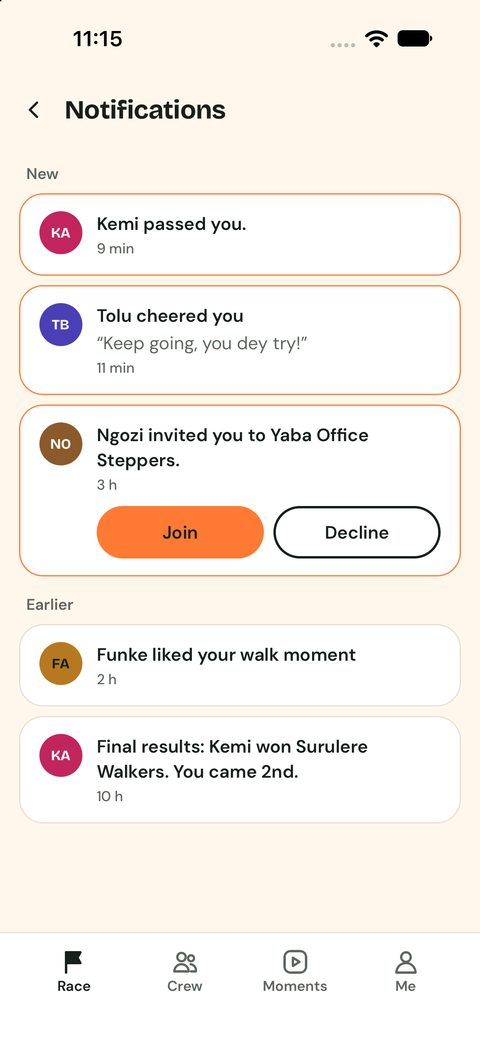
Tap the bell on the Race tab. You’ll see passes, cheers, nudges, crew invites (with Join and Decline) and each day’s final results.

Choose what you hear about in Me › Settings › Notifications.

The notifications screen with a pass, a cheer, an invite and results
06

Yesterday’s winner

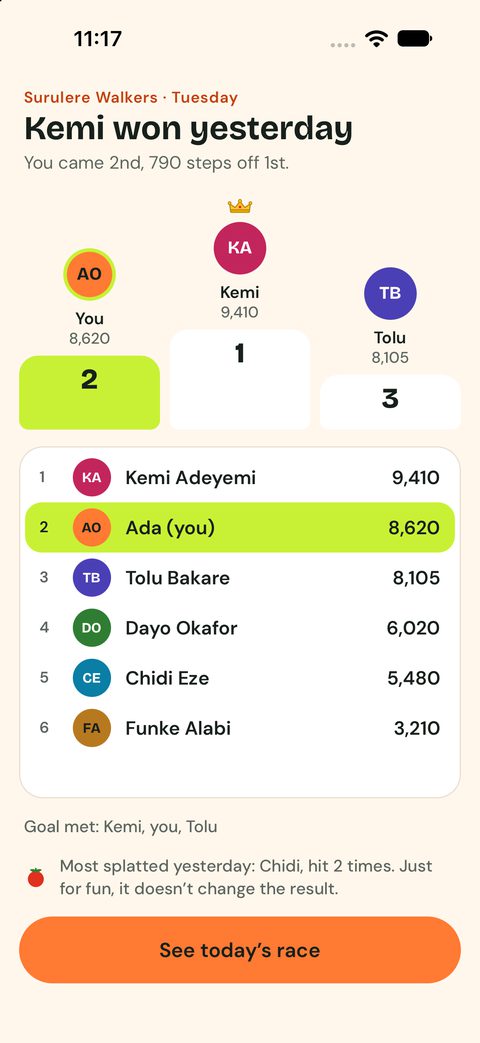
When the day ends, the crown is decided. The next time you open the app you see the podium and the full results. Tap See today’s race to start again.

The results screen: Kemi won yesterday, you came 2nd
07

The Crew tab

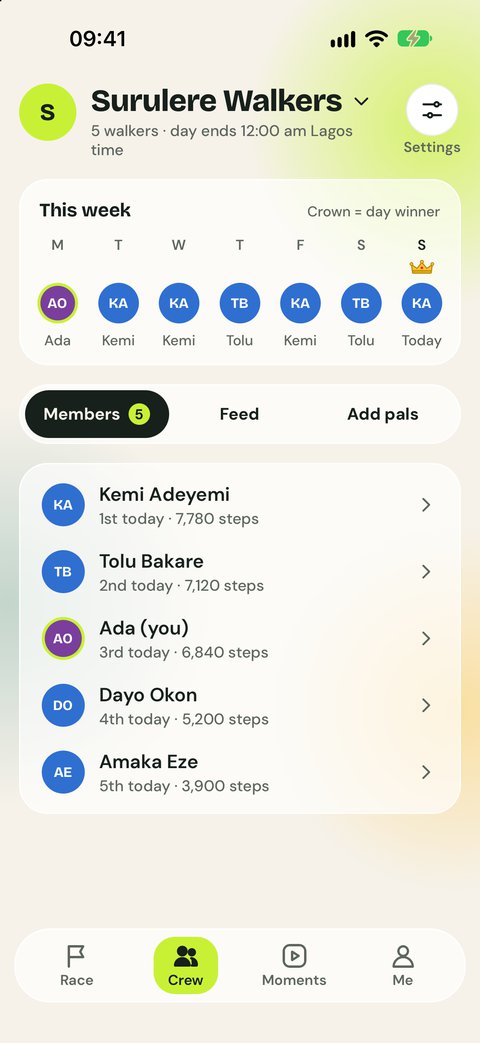
Your crew’s week (who won each day), the Members list, the crew Feed, and Add pals.

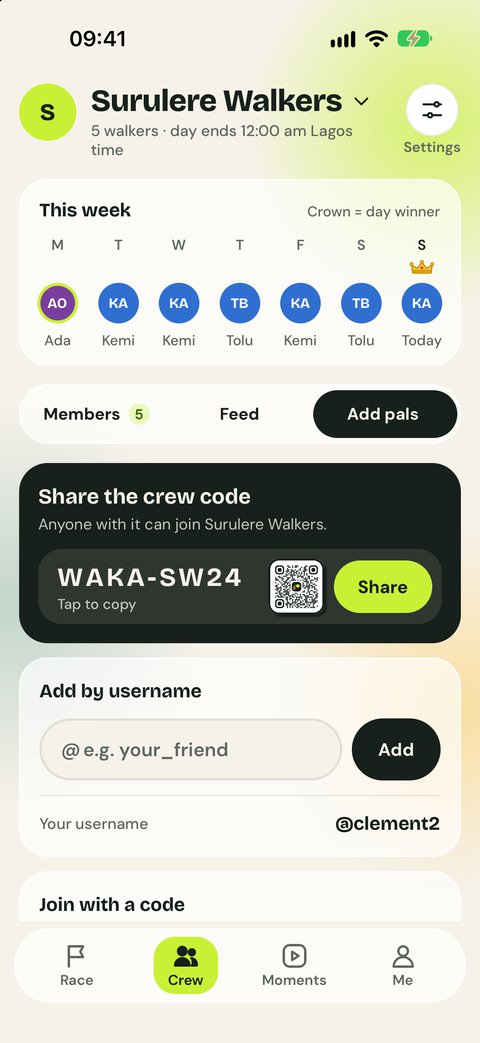
In Add pals you can share the invite code or link, show the crew QR code, or add someone by username.

The Crew tab: this week, members and their places
08

Adding pals

On the Crew tab, tap Add pals. Share the crew code or link with Share, let someone scan the QR code, or type their @username and tap Add. Got a code for another crew? Type it under Join with a code.

Add pals: the crew code WAKA-SW24 with a QR code and Share, and Add by username
09

Running a crew

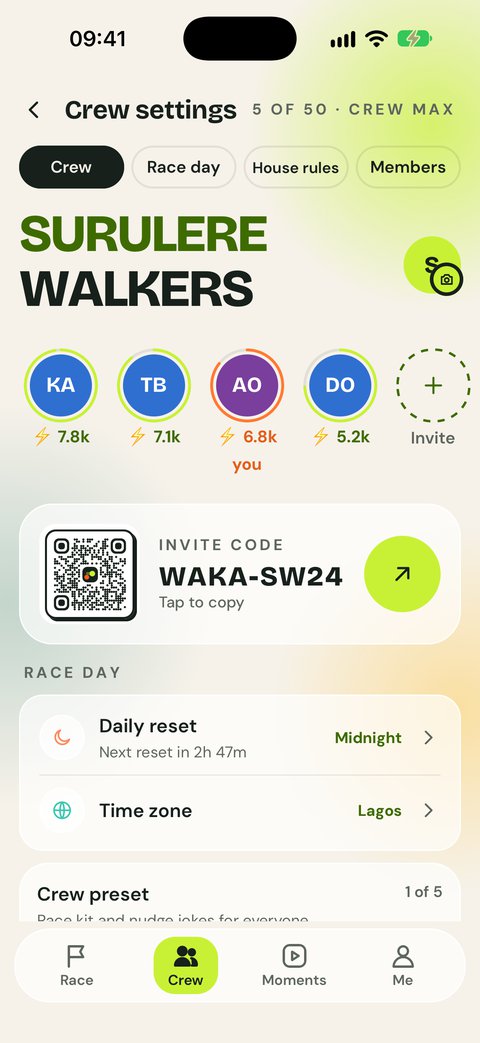
If you run the crew, tap the settings button on the Crew tab. Tap the crew’s big name to rename it, or its photo to change it. Share the invite code, pick when the race day starts (midnight, 5 am or 6 am) and the crew’s time zone, set house rules such as nudges and tomatoes, manage members, and start a crew challenge under Extras.

Crew settings: invite code, race day, time zone
10

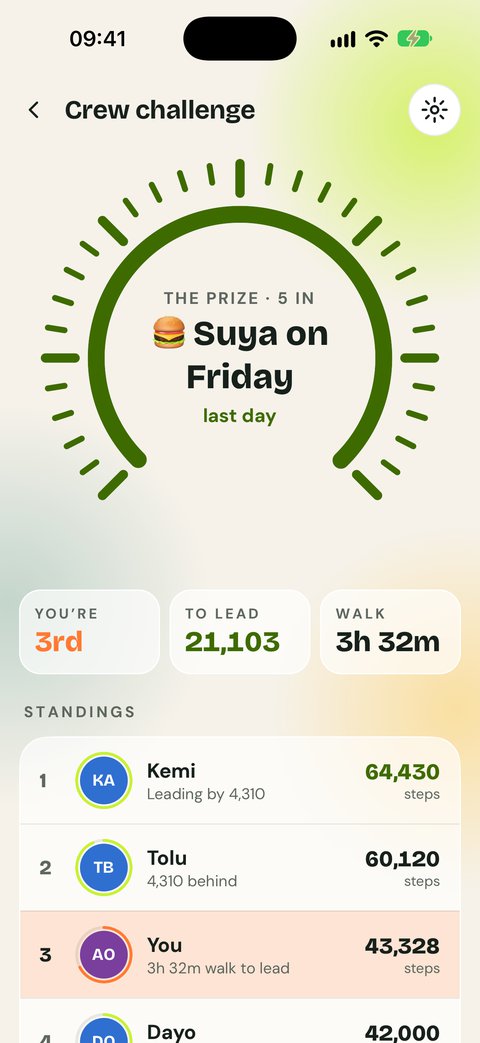
Crew challenge

A friendly bet on Crew 10 and Crew Max: most steps wins the prize. The person who runs the crew starts it in crew settings under Extras › Crew challenge: money (everyone puts in the same and the winner takes it all), food, drinks or something else, for today, this week or this month.

Everyone else taps the card on the Race tab, then I’m in. The challenge screen shows the prize, your place, and how long a walk it takes to lead. When it ends, the winner gets their own screen to share. WakaPals never takes or holds money: you settle between yourselves.

The crew challenge: the prize, your place and the standings
11

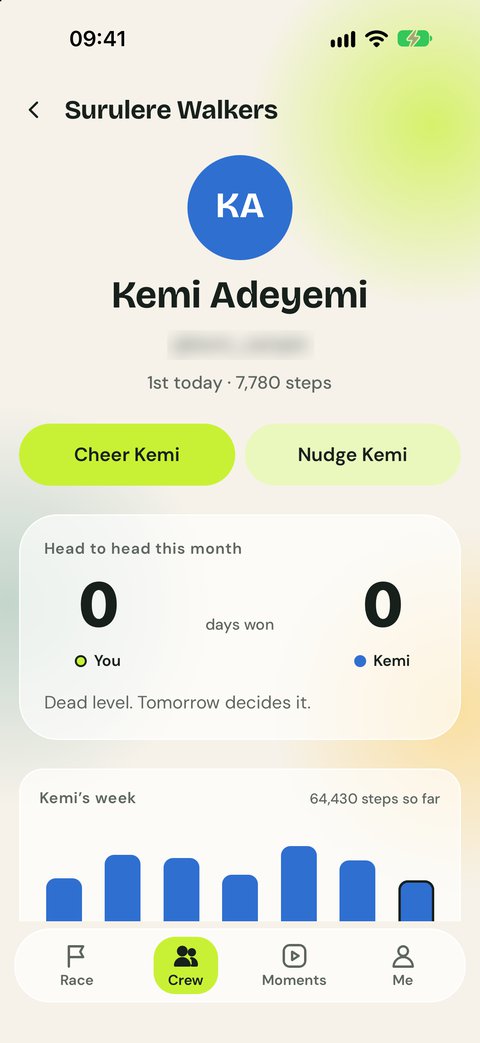
A crewmate’s page

Tap anyone on the track or in the standings to see their week. Cheer them on or Nudge them to get walking, see your head-to-head this month, or report or block them if you need to.

Kemi’s page with Cheer and Nudge buttons
12

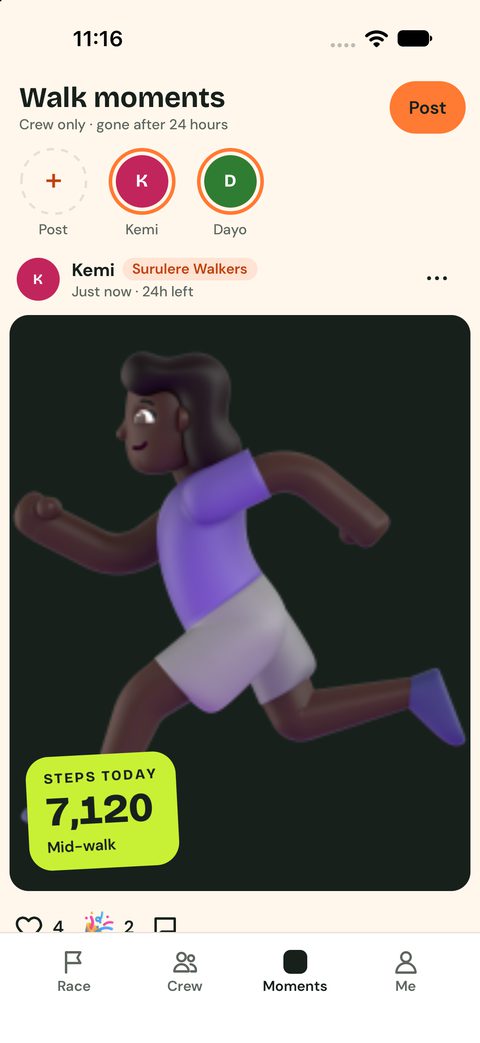
Walk moments

Your crewmates’ photos and 10-second videos from their walks, each with their steps. Swipe sideways to go from one to the next. Tap ❤️ or Cheer, or reply privately. The rings at the top are your crewmates: a lime ring means something new, and a double-tap cheers them. Tap a crew’s button to see only its moments, and the small speaker button for sound. Moments are gone after 24 hours.

The Moments feed with a walk photo and a steps sticker
13

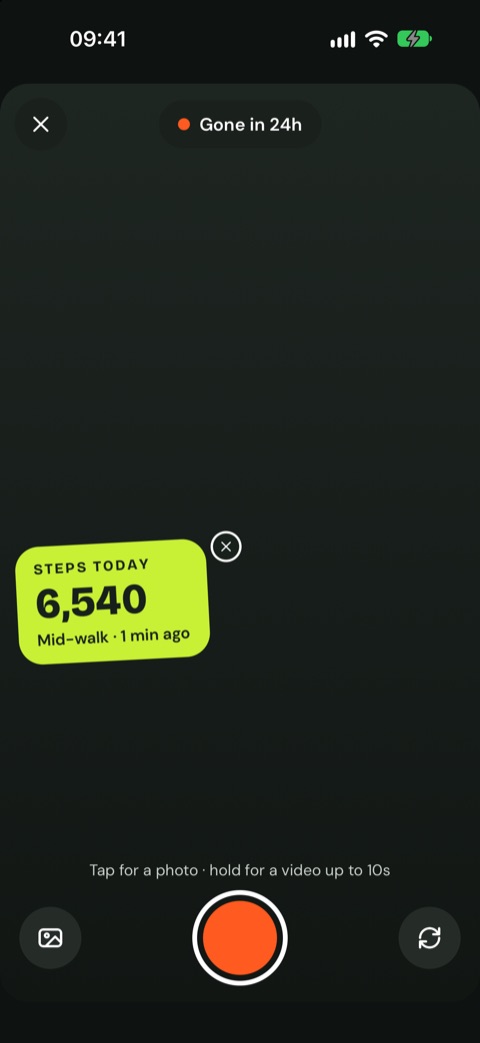
Posting a moment

On the Moments tab, tap the orange + You ring. Tap the round button for a photo, or hold it for a video of up to 10 seconds. Your steps sticker sits on top; tap its ✕ to leave it off. You can also pick a photo from your gallery or flip the camera.

The Post screen: steps sticker, shutter button and Gone in 24h
14

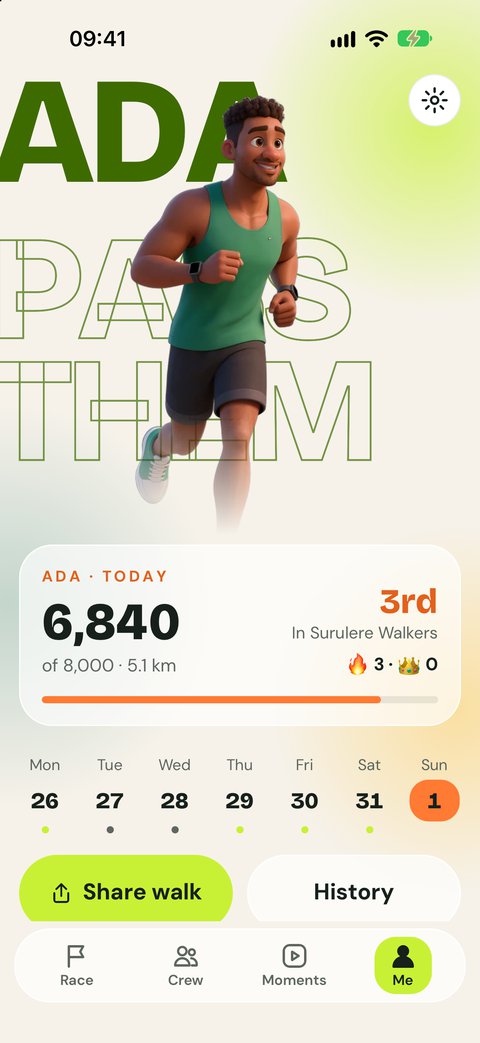
The Me tab

Your first name, big, with your runner. Below it: today’s steps against your goal, distance, your goal and win streaks, and this week day by day (tap a day to see it). Tap History for every day before, or Share today’s walk to post a picture of your day anywhere.

The Me tab: steps today, distance and streaks
15

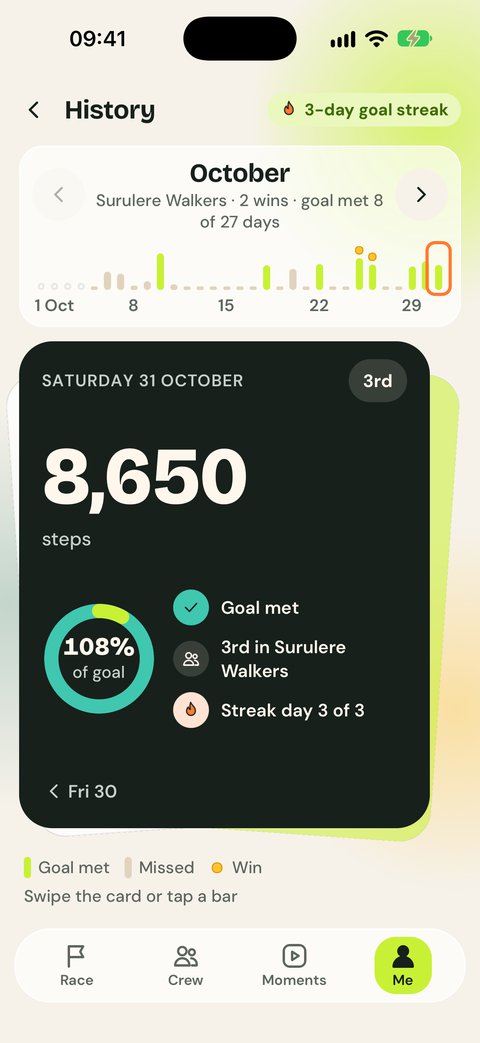
Your history

Every day at a glance: how many steps, whether you met your goal, and your place in the crew. Tap a day, or swipe its card, to see the next one. Free shows 30 days; Crew 10 and Crew Max show everything.

History: the month’s days and a day card with your goal ring
16

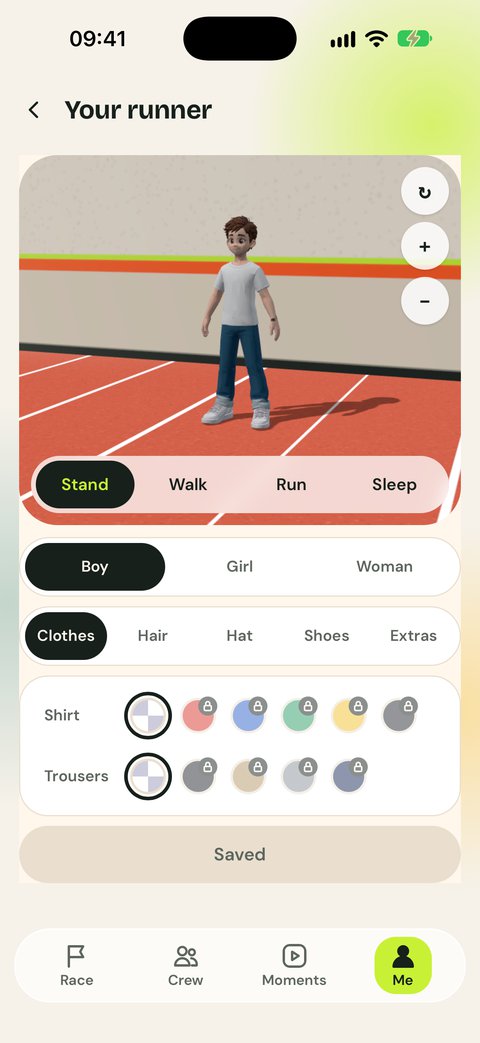
Your runner

Choose Boy, Girl or Woman, see them stand, walk, run and sleep, and change colours. Extras like a cap, backpack or the Pup come from the Shop.

The runner screen with outfit colours
17

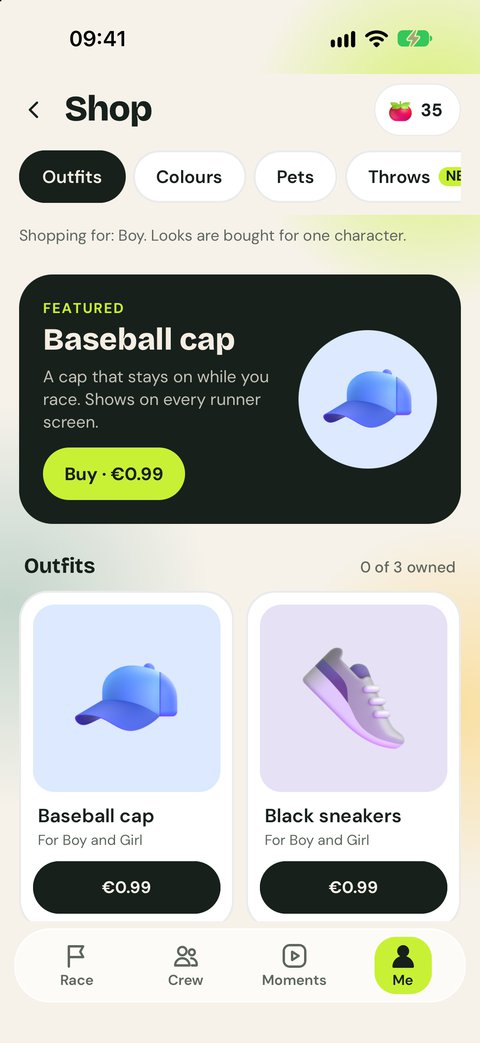
The Shop

Me › Settings › Shop. Outfits (cap, sneakers, backpack), Colours packs, Pets like the Pup that runs beside you, and Throws (egg, pepper or jollof instead of a tomato), plus tomato packs. You pay once through the App Store or Google Play. Everything is looks only and stays yours on every phone.

The Shop: Outfits, Colours, Pets and Throws
18

Your plan

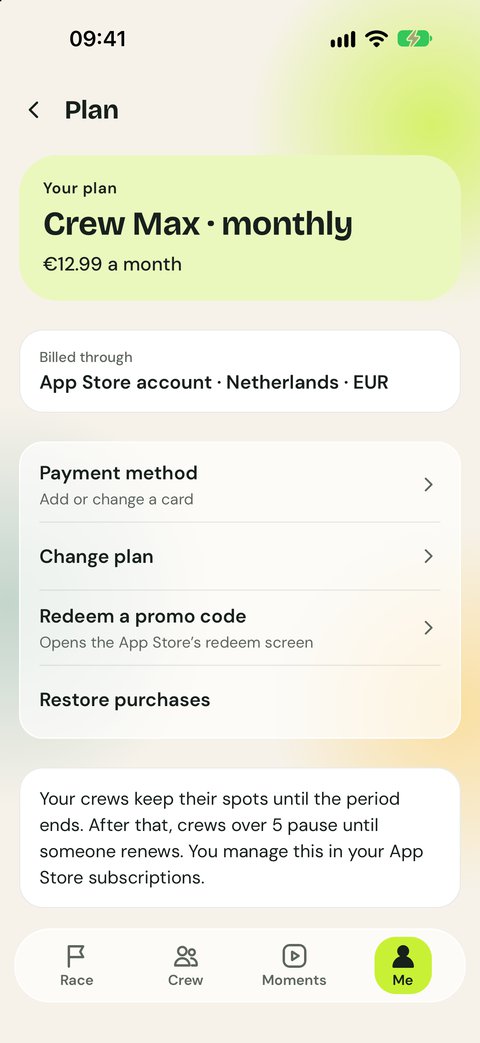
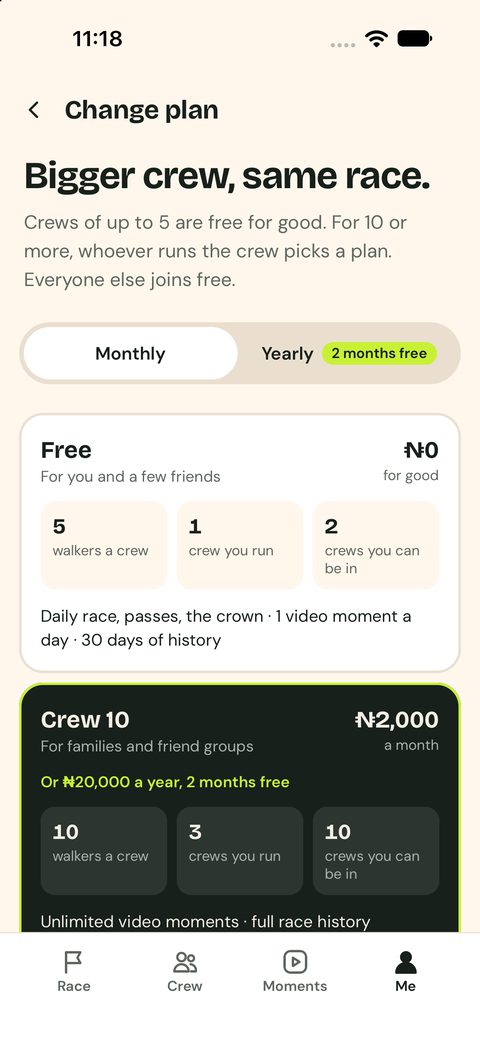
Me › Settings › your plan shows what you pay and when it renews. Tap Change plan to move between Free, Crew 10 and Crew Max, and pay monthly or yearly (2 months free).

The plan screen: Crew Max, paid monthly
19

Comparing plans

Each plan shows how many walkers fit in a crew you run, how many crews you can run, and how many you can be in. Only the person who runs a crew pays.

Change plan: Free and Crew 10 side by side
20

Settings

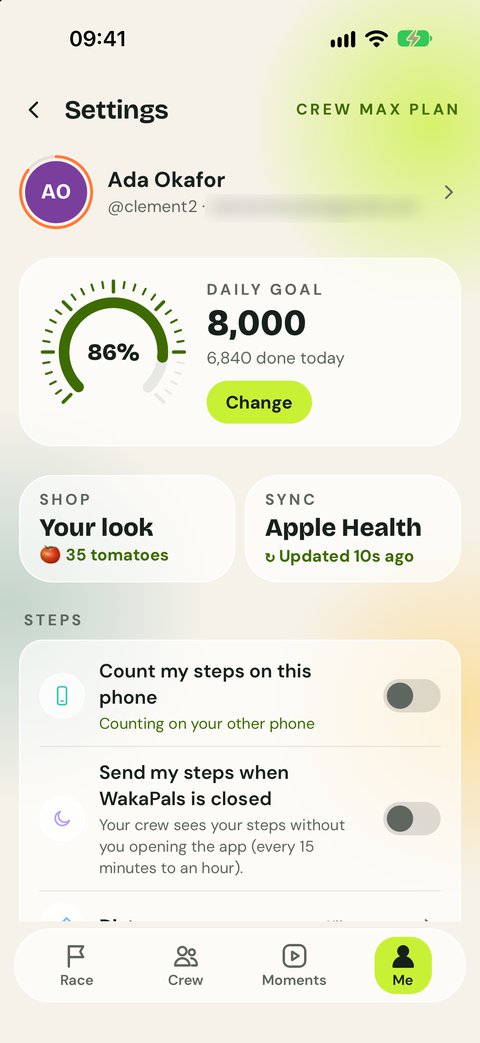
Tap the gear on the Me tab. Your plan is at the top right. Tap your name to change your name or profile photo. Turn the dial to set your daily goal, and use the Shop and Sync tiles. Below: which phone counts your steps, sending steps while the app is closed, notifications, language, sign-in and more. Delete account is at the bottom.

Settings: daily goal, step phone, background steps
21

Your profile photo

Me › Settings, tap your name, then Upload photo. The front camera opens with a circle showing what your crew will see. Tap the round button to take a photo, the arrows to switch camera, or the photos button to pick one from your gallery. Then move and zoom it to fit.

22

Privacy and your data

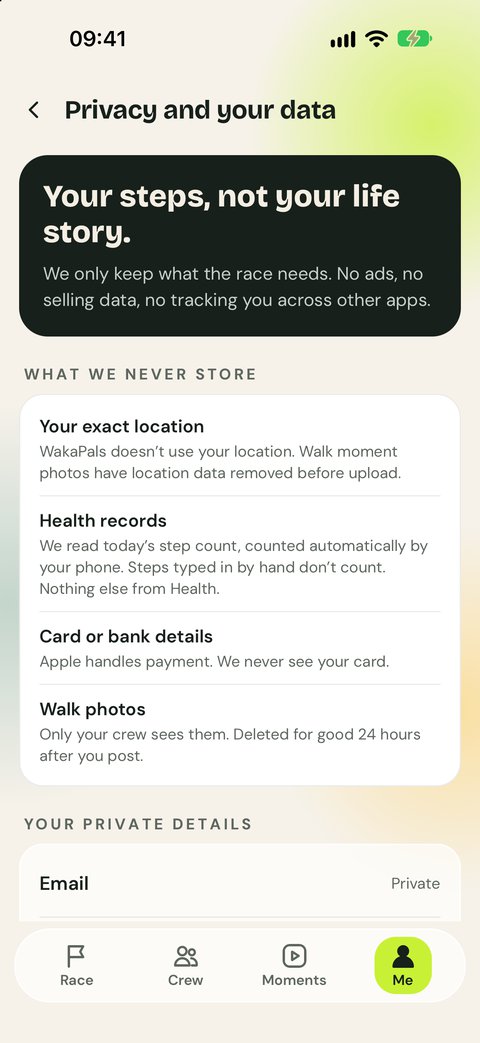
Settings › Privacy and safety › Privacy and your data shows what we keep and what we never store, and lets you hide your exact step count from your crews.

Privacy and your data screen

Still stuck?

See the Help answers or write to us.